Print this page

How to configure Microsoft Outlook 2010 to Send & Receive Mail

If you've just started using Wild Planet as your email service provider, there are a few configuration changes you will need to make in your Microsoft Outlook before you can begin sending and receiving mail. Up to now, your Outlook has been configured to log into your previous email servers, but now you must give it the instructions it needs to log into ours.

There are quite a few versions of Microsoft Outlook, but the settings are the same for all of them. The only thing that is different is how you get to the Account Settings area. Below you will find instructions for Outlook 2010; we are currently working on instructions for Outlook 2000, 2003, 2007, and 2013.


1. Start the Microsoft Outlook program.

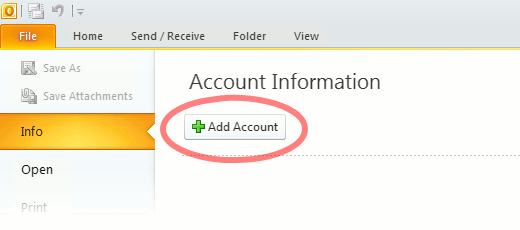
Use the Start menu to start Outlook 2010. If you’ve never used Outlook before, it will prompt you to create a new account. In that case, skip ahead to step 2. If you’ve previously used Outlook and it doesn’t prompt you, click the File tab, then the Add Account button (see image below).

Or, if you have been using Outlook previously and simply need to reconfigure it in order to use our email servers, then look for your existing account in the Account Settings window, and then click the CHANGE button. (because you will be CHANGING existing account settings). Skip to Step 4 below.
outlook2010 1

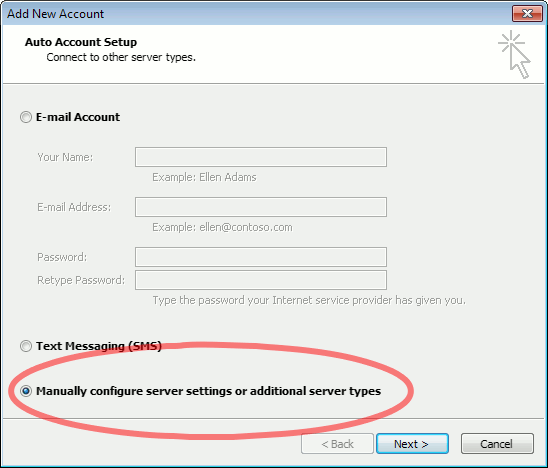
2. The “Auto Account Setup” screen appears.

When this window appears, leave the spaces empty, choose the Manually configure server settings or additional server types option, then click Next.
outlook2010 2

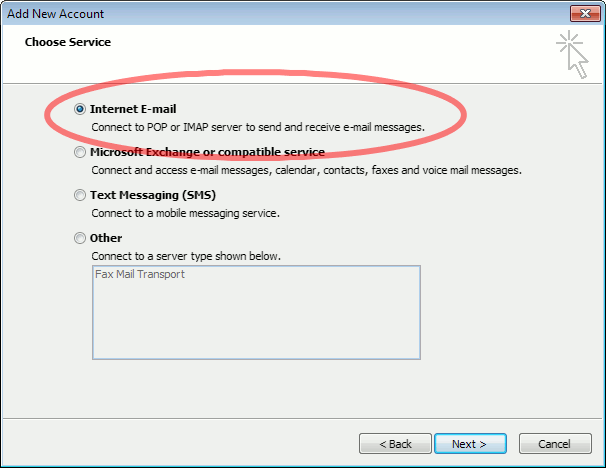
3. The “Choose Service” screen appears.

Choose Internet E-mail, then click Next.
Outlook 2010

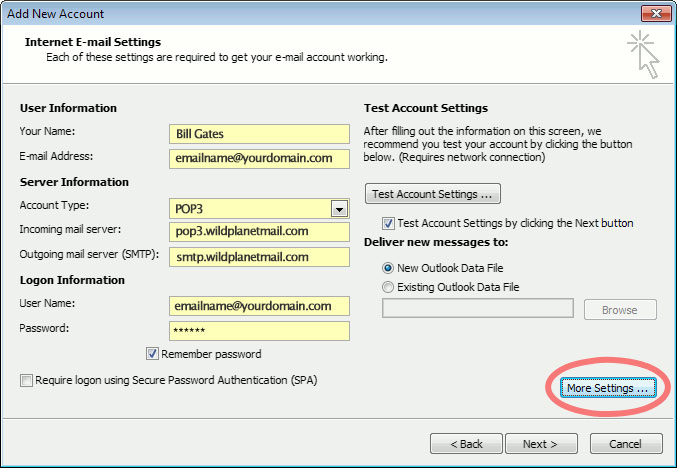
4. The “Internet E-mail Settings” screen appears.

This is the window where you’ll enter most of your account settings. You want the window to look like this:
Outlook 2010
  • “Your Name” is the name that other people will see when you send them e-mail. It should usually be your real name, such as Bill Gates or Joan of Arc.
  • Enter your “E-mail Address”. The address must be the e-mail address of the mailbox you created in your account management control panel.
  • For “Account Type”, choose POP3.
  • Enter pop3.wildplanetmail.com for the “Incoming mail server” and smtp.wildplanetmail.com for the “Outgoing mail server (SMTP)”.
  • Enter your (full) e-mail address again as the “User Name”. (The user name must be all lowercase).
  • Type your e-mail password into the “Password” box. This is the password you chose for this e-mail address when you created the mailbox in your account management control pane (unless we have created it for you). This password may be different from your master “My Account” password with our company.
  • Make sure that “Require logon using Secure Password Authentication (SPA)” is not checked.
  • Do not click “Test Account Settings” or “Next” yet; they will not work until you complete the next steps.

5. View “More Settings”.

Click the More Settings button. A new “Internet E-mail Settings” window appears.

6. Choose the “Outgoing Server” tab.

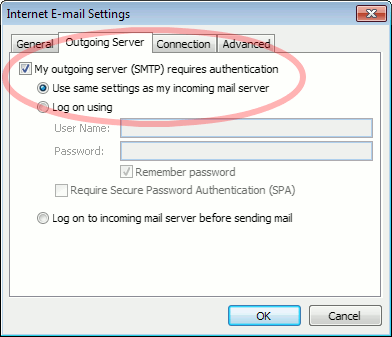
In the “Outgoing Server” tab, check My outgoing server (SMTP) requires authentication and make sure Use same settings as my incoming mail server is selected:
Outlook 2010 outgoing authentication


7. Close the “Internet E-mail Settings” window.

Click OK to close the “Internet E-mail Settings” window. The “Add New Account” screen will still be visible.

8. Test the settings.

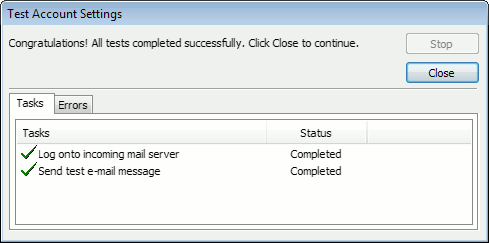
Click Next. Outlook will test the settings, then should tell you that “all tests completed successfully”:
outlook2010 10

If Outlook tells you a test failed, double-check to be sure you’ve entered the settings correctly.

9. Finish the wizard.

If the “Test Account Settings” window is still open, click Close to continue.

Click Finish to finish the wizard.

Outlook setup is complete

You’re finished! Try sending yourself a test e-mail message to make sure it works.

Read 1124448 times Last modified on %AM, %07 %246 %2015 %04:%Mar

About The Author

Super User

Lorem ipsum dolor sit amet, consectetur adipiscing elit, sed do eiusmod tempor incididunt ut labore et dolore magna aliqua. Ut enim ad minim veniam, quis nostrud exercitation ullamco laboris nisi ut aliquip ex ea commodo consequat. Duis aute irure dolor in reprehenderit in voluptate velit esse cillum dolore eu fugiat nulla pariatur.

183807 comments

  • golden goose
    Comment Link golden goose %PM, %23 %898 %2022 %20:%Mar

    Thanks for every one of your work on this web page. My mum take interest in doing investigations and it is easy to see why. I learn all regarding the lively way you present great information via your web site and even increase response from visitors about this point then our simple princess has always been studying so much. Take advantage of the rest of the year. You have been carrying out a stunning job.

  • kd shoes
    Comment Link kd shoes %PM, %23 %898 %2022 %20:%Mar

    Thank you so much for giving everyone such a superb possiblity to read critical reviews from this web site. It can be so brilliant and as well , packed with amusement for me and my office co-workers to search your blog at minimum three times in one week to see the new guides you will have. And of course, I'm so at all times happy with all the very good creative ideas you give. Certain 1 areas on this page are undeniably the most efficient I've ever had.

  • golden goose
    Comment Link golden goose %PM, %23 %898 %2022 %20:%Mar

    I not to mention my pals were actually checking the good thoughts located on your web site then suddenly I had a terrible suspicion I never thanked the site owner for those strategies. Those people appeared to be for this reason thrilled to study all of them and have clearly been making the most of these things. Many thanks for turning out to be really considerate and also for finding certain notable resources most people are really wanting to be aware of. My sincere regret for not saying thanks to you earlier.

  • supreme clothing
    Comment Link supreme clothing %PM, %23 %898 %2022 %20:%Mar

    A lot of thanks for all of the labor on this web site. Ellie loves engaging in investigation and it's simple to grasp why. A number of us notice all regarding the lively ways you present sensible tips and tricks via this blog and therefore strongly encourage contribution from some other people about this topic and my girl is truly starting to learn a lot of things. Take advantage of the remaining portion of the year. You have been carrying out a pretty cool job.

  • a bathing ape
    Comment Link a bathing ape %PM, %23 %898 %2022 %20:%Mar

    I intended to draft you a little bit of remark in order to say thank you again for the splendid techniques you have discussed in this article. It's simply seriously generous of people like you to make without restraint all that most of us would have sold as an electronic book to generate some money on their own, mostly now that you might have tried it in the event you decided. The tactics also acted to become fantastic way to recognize that many people have a similar fervor just like my personal own to understand more and more on the subject of this matter. I'm sure there are numerous more pleasurable instances ahead for many who looked at your site.

  • yeezy
    Comment Link yeezy %PM, %23 %898 %2022 %20:%Mar

    I'm also writing to let you be aware of of the useful discovery my cousin's daughter had studying your site. She figured out numerous pieces, which included what it's like to possess an excellent teaching mood to make many others easily grasp specific impossible topics. You truly exceeded people's desires. Many thanks for showing the useful, safe, informative and fun guidance on the topic to Sandra.

  • yeezy boost 350
    Comment Link yeezy boost 350 %PM, %23 %897 %2022 %20:%Mar

    I in addition to my friends ended up following the best techniques on your site and all of the sudden I had an awful suspicion I had not expressed respect to the web site owner for those techniques. My young men appeared to be for that reason passionate to learn all of them and already have very much been making the most of these things. Appreciation for getting simply helpful and for choosing this kind of fine subject matter most people are really eager to understand about. Our sincere apologies for not saying thanks to sooner.

  • golden goose
    Comment Link golden goose %PM, %23 %897 %2022 %20:%Mar

    I want to express my respect for your kindness in support of people that have the need for help on the topic. Your special commitment to passing the solution up and down became remarkably interesting and has constantly helped those just like me to attain their goals. Your useful advice denotes so much a person like me and especially to my mates. With thanks; from each one of us.

  • kobe 11
    Comment Link kobe 11 %PM, %23 %897 %2022 %20:%Mar

    Thanks for your entire efforts on this website. My niece takes pleasure in getting into research and it's easy to understand why. All of us hear all regarding the powerful method you convey priceless tips and hints on this blog and as well foster contribution from website visitors on this point then our favorite child is now studying a lot. Have fun with the rest of the year. Your performing a terrific job.

  • yeezy boost
    Comment Link yeezy boost %PM, %23 %897 %2022 %20:%Mar

    My husband and i ended up being now ecstatic when Edward could do his investigations with the precious recommendations he got through the web page. It is now and again perplexing to just always be giving freely things that some people could have been making money from. So we see we've got the writer to appreciate for that. The main explanations you've made, the easy site navigation, the relationships you will make it easier to instill - it's got mostly exceptional, and it is leading our son in addition to the family do think this situation is exciting, and that is especially pressing. Many thanks for the whole lot!