
Blog

How to configure Microsoft Outlook 2007 to Send & Receive Mail

This page explains how to set up Microsoft Outlook 2007 to send and receive e-mail for a POP mailbox you've created.

Tip: make sure that the program you are using is Microsoft Outlook, and not Microsoft Outlook Express. These two similarly named programs have different set up instructions. Be sure you do not see the word "Express" on the screen when you start the program.

1. Start the Microsoft Outlook program.

You can use the Start menu to start Outlook 2007. When it opens, click Tools, then Accounts Settings from the menu bar:

outlook2007 1

2. The "Accounts Settings" window appears.

Make sure the E-mail tab is selected, then click New.

outlook2007 2

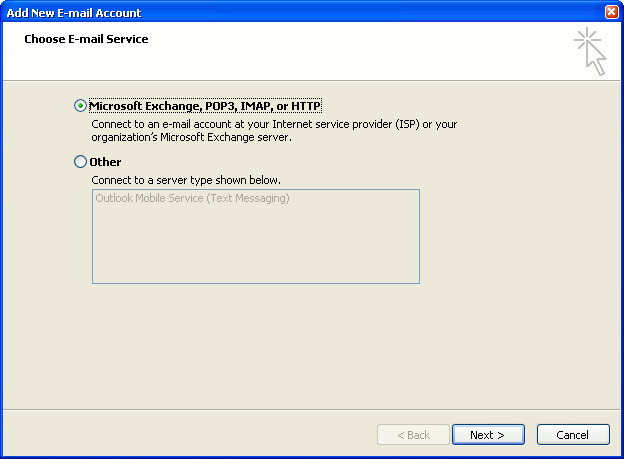
3. You are asked to choose the E-mail Service.

Choose Microsoft Exchange, POP3, IMAP or HTTP, then click Next.
outlook2007 3

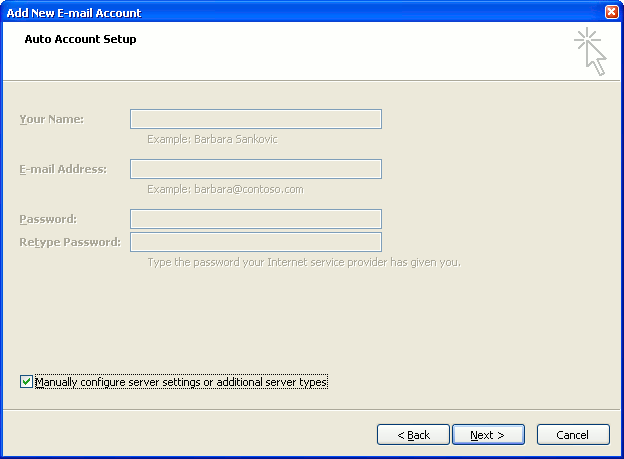
4. The "Auto Account Setup" screen appears.

When this window appears, simply leave the fields empty, check the Manually configure server settings or additional server types checkbox, then click Next.
outlook2007 4

5. The "Choose E-mail Service" screen appears.

Choose Internet E-mail, then click Next.

outlook2007 5

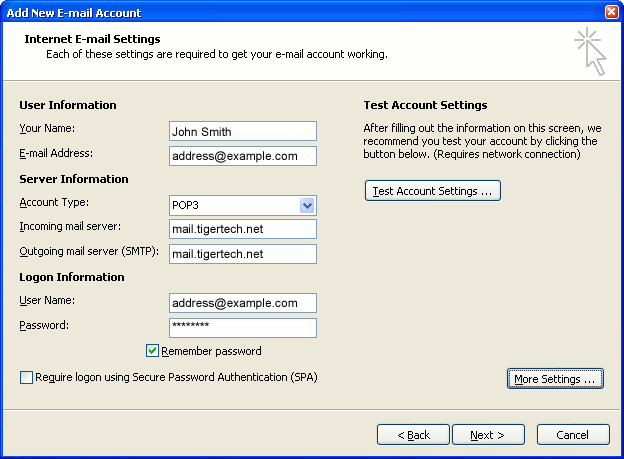
6. The "Internet E-mail Settings" screen appears.

This is the window where you'll enter most of your account settings. You want the window to look like this:
outlook2007 6
  • "Your Name" is the name that other people will see when you send them e-mail. It should usually be your real name, such as John Smith or Joan of Arc.
  • Enter your "E-mail Address". The address must be the e-mail address of the POP mailbox you created in your account management control panel.
  • For "Account Type", choose POP3.
  • Enter pop3.wildplanetmail.com for the "Incoming mail server" and smtp.wildplanetmail.com for the "Outgoing mail server (SMTP)".
  • Enter your e-mail address again as the "User Name". (The user name must be all lower case).
  • Type your e-mail password into the "Password" box. This is the password you chose for this e-mail address when you created the mailbox in your account management control panel. Or, we may have created it for you. Remember that this password may be different from your master account password. Make sure you check Remember password if you don't want Outlook to ask you for the password each time you read e-mail.
  • Make sure that "Require logon using Secure Password Authentication (SPA)" is not checked.
  • Do not click "Test Account Settings" yet; it will not work until you complete the next steps.

7. Click the "More Settings" button.

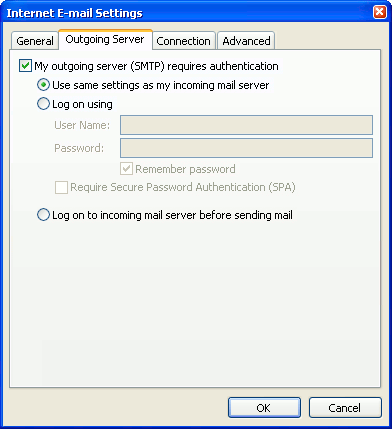
A new "Internet E-mail Settings" window appears.

8. Choose the "Outgoing Server" tab.

In the "Outgoing Server" tab, check My outgoing server (SMTP) requires authentication.

Select Use same settings as my incoming mail server.
outlook2007 8

9. Choose the "Advanced" tab.

Click the "Advanced" tab and change the "Outgoing Server (SMTP)" port number to 587. Doing this makes sure that your ISP will not block your outgoing mail connections.

outlook2007 10

In this picture, we've also shown the "Leave a copy of messages on the server" option checked. Whether you do this (and what options you choose below it) is up to you, but we do recommend it: it makes Outlook leave messages on our server so they're visible to your Webmail pages, and to any other devices you might use to read mail. If you don't enable this option, your computer running Outlook will contain the only copies of your messages.

10. Click OK to close the "Internet E-mail Settings" window.

After you close the "Internet E-mail Settings" window, the "Add New E-mail Account" screen will still be visible.

11. Test the settings.

Click Test Account Settings. Outlook will usually tell you that "all tests completed successfully".

If Outlook tells you a test failed, double-check to be sure you've entered the settings correctly.

If Outlook still tells you that a test failed, we recommend continuing anyway. This is because some software on your computer (including Norton Antivirus) can make the "Test Account Settings" feature fail, even when Outlook is correctly configured. In most cases, Outlook will work properly when you try sending real messages.

If the "Test Account Settings" window is still open, close it to continue.

12. Finish the wizard.

Click Next, then Finish.

outlook2007 finish

Outlook setup is complete

You're finished! Try sending yourself a test e-mail message to make sure it works.

Read 849338 times Last modified on %AM, %07 %245 %2015 %04:%Mar

About The Author

Super User

Lorem ipsum dolor sit amet, consectetur adipiscing elit, sed do eiusmod tempor incididunt ut labore et dolore magna aliqua. Ut enim ad minim veniam, quis nostrud exercitation ullamco laboris nisi ut aliquip ex ea commodo consequat. Duis aute irure dolor in reprehenderit in voluptate velit esse cillum dolore eu fugiat nulla pariatur.

85709 comments

  • golden goose platform sneakers
    Comment Link golden goose platform sneakers %AM, %28 %505 %2023 %11:%Apr

    Oh my goodness! a tremendous article dude. Thank you However I am experiencing subject with ur rss . Don抰 know why Unable to subscribe to it. Is there anyone getting similar rss downside? Anybody who knows kindly respond. Thnkx

  • authentic cheap jordans
    Comment Link authentic cheap jordans %AM, %28 %492 %2023 %10:%Apr

    I received the package, thank you for your prompt service, or perhaps your reputation and feedback is true, I am very satisfied with the product and your service, as good as the I will definitely refer potential customers to you, situation It was a pleasure to do business with you, Thank you again.

  • cheap jordans online
    Comment Link cheap jordans online %AM, %28 %490 %2023 %10:%Apr

    I received the package, thank you for your prompt service, to your reputation and feedback is true, I am very satisfied with the product and your service, enjoy the I will definitely refer potential customers to you, in either case It was a pleasure to do business with you, Thank you again.

  • off white
    Comment Link off white %AM, %28 %488 %2023 %10:%Apr

    My husband and i ended up being quite lucky Peter managed to finish off his investigations because of the ideas he discovered out of your web page. It's not at all simplistic just to always be handing out facts that a number of people may have been making money from. And now we already know we have the writer to thank for this. The explanations you've made, the simple site navigation, the relationships your site help foster - it's got many superb, and it's letting our son in addition to us imagine that the concept is excellent, which is certainly extremely important. Thanks for everything!

  • golden goose dupes
    Comment Link golden goose dupes %AM, %28 %488 %2023 %10:%Apr

    Would you be thinking about exchanging links?

  • ggdb
    Comment Link ggdb %AM, %28 %485 %2023 %10:%Apr

    Thanks for all your valuable effort on this web site. Ellie delights in participating in internet research and it's really easy to understand why. Many of us learn all of the dynamic manner you offer helpful solutions by means of the blog and strongly encourage contribution from people on the topic plus our own girl is truly understanding a lot of things. Enjoy the remaining portion of the new year. Your performing a very good job.

  • cheap jordans
    Comment Link cheap jordans %AM, %28 %485 %2023 %10:%Apr

    I would like to express my thanks to this writer just for rescuing me from such a instance. Right after surfing throughout the world wide web and obtaining notions which were not pleasant, I figured my life was gone. Existing without the presence of solutions to the issues you have sorted out as a result of this guideline is a critical case, as well as the kind which may have in a wrong way damaged my career if I had not discovered your blog. Your personal knowledge and kindness in controlling every part was valuable. I'm not sure what I would've done if I hadn't come across such a step like this. I am able to at this time look ahead to my future. Thank you so much for the high quality and results-oriented guide. I will not hesitate to refer your blog to anybody who wants and needs assistance about this subject matter.

  • golden goose purestar
    Comment Link golden goose purestar %AM, %28 %483 %2023 %10:%Apr

    Hello! I just wish to give a huge thumbs up for the great info you've gotten right here on this post. I might be coming back to your blog for more soon.

  • golden goose sneakers
    Comment Link golden goose sneakers %AM, %28 %481 %2023 %10:%Apr

    I just wanted to send a small word in order to appreciate you for all the fantastic ways you are giving out here. My time-consuming internet search has at the end of the day been honored with good know-how to exchange with my family members. I 'd assert that many of us website visitors actually are really endowed to dwell in a fine community with many perfect professionals with insightful points. I feel quite grateful to have used the website page and look forward to tons of more enjoyable times reading here. Thanks a lot once again for all the details.

  • hermes
    Comment Link hermes %AM, %28 %476 %2023 %10:%Apr

    A lot of thanks for all your valuable work on this web page. Kim enjoys doing research and it is simple to grasp why. My partner and i learn all of the lively method you render good strategies on your website and increase response from website visitors on that theme plus my daughter is truly discovering a great deal. Have fun with the remaining portion of the year. You are always carrying out a really good job.

Leave a comment

Make sure you enter all the required information, indicated by an asterisk (*). HTML code is not allowed.

Flickr Stream






