
Blog

How to configure Microsoft Outlook 2007 to Send & Receive Mail

This page explains how to set up Microsoft Outlook 2007 to send and receive e-mail for a POP mailbox you've created.

Tip: make sure that the program you are using is Microsoft Outlook, and not Microsoft Outlook Express. These two similarly named programs have different set up instructions. Be sure you do not see the word "Express" on the screen when you start the program.

1. Start the Microsoft Outlook program.

You can use the Start menu to start Outlook 2007. When it opens, click Tools, then Accounts Settings from the menu bar:

outlook2007 1

2. The "Accounts Settings" window appears.

Make sure the E-mail tab is selected, then click New.

outlook2007 2

3. You are asked to choose the E-mail Service.

Choose Microsoft Exchange, POP3, IMAP or HTTP, then click Next.
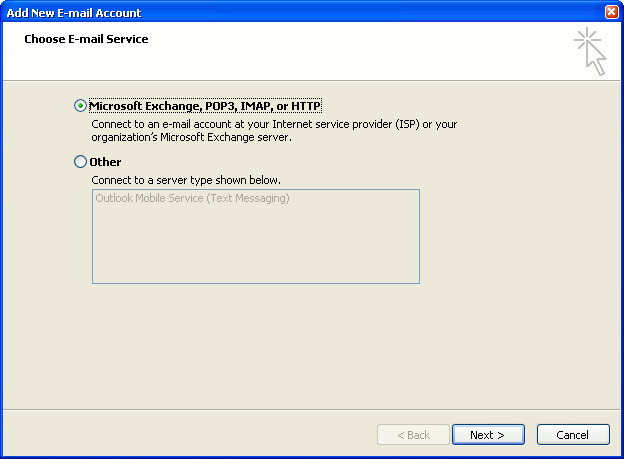
outlook2007 3

4. The "Auto Account Setup" screen appears.

When this window appears, simply leave the fields empty, check the Manually configure server settings or additional server types checkbox, then click Next.
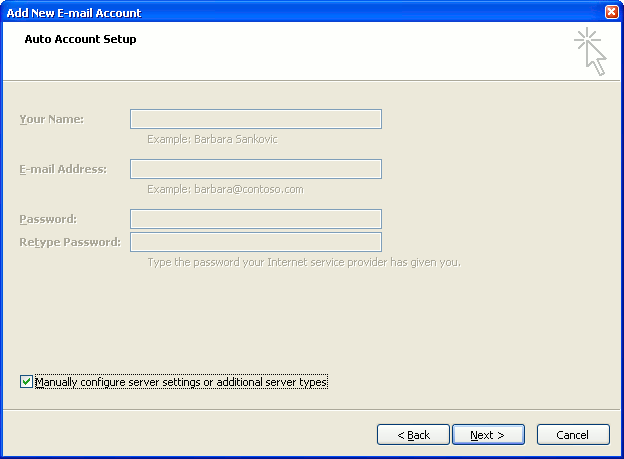
outlook2007 4

5. The "Choose E-mail Service" screen appears.

Choose Internet E-mail, then click Next.

outlook2007 5

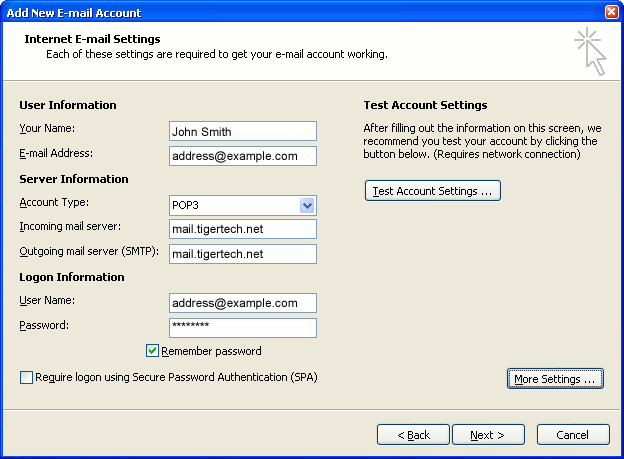
6. The "Internet E-mail Settings" screen appears.

This is the window where you'll enter most of your account settings. You want the window to look like this:
outlook2007 6
  • "Your Name" is the name that other people will see when you send them e-mail. It should usually be your real name, such as John Smith or Joan of Arc.
  • Enter your "E-mail Address". The address must be the e-mail address of the POP mailbox you created in your account management control panel.
  • For "Account Type", choose POP3.
  • Enter pop3.wildplanetmail.com for the "Incoming mail server" and smtp.wildplanetmail.com for the "Outgoing mail server (SMTP)".
  • Enter your e-mail address again as the "User Name". (The user name must be all lower case).
  • Type your e-mail password into the "Password" box. This is the password you chose for this e-mail address when you created the mailbox in your account management control panel. Or, we may have created it for you. Remember that this password may be different from your master account password. Make sure you check Remember password if you don't want Outlook to ask you for the password each time you read e-mail.
  • Make sure that "Require logon using Secure Password Authentication (SPA)" is not checked.
  • Do not click "Test Account Settings" yet; it will not work until you complete the next steps.

7. Click the "More Settings" button.

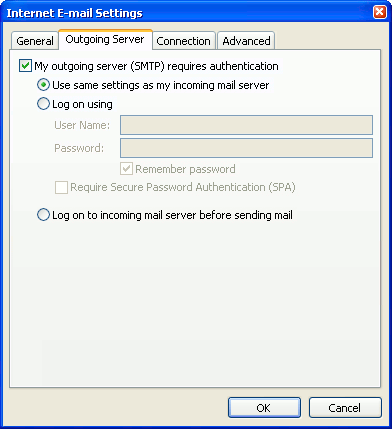
A new "Internet E-mail Settings" window appears.

8. Choose the "Outgoing Server" tab.

In the "Outgoing Server" tab, check My outgoing server (SMTP) requires authentication.

Select Use same settings as my incoming mail server.
outlook2007 8

9. Choose the "Advanced" tab.

Click the "Advanced" tab and change the "Outgoing Server (SMTP)" port number to 587. Doing this makes sure that your ISP will not block your outgoing mail connections.

outlook2007 10

In this picture, we've also shown the "Leave a copy of messages on the server" option checked. Whether you do this (and what options you choose below it) is up to you, but we do recommend it: it makes Outlook leave messages on our server so they're visible to your Webmail pages, and to any other devices you might use to read mail. If you don't enable this option, your computer running Outlook will contain the only copies of your messages.

10. Click OK to close the "Internet E-mail Settings" window.

After you close the "Internet E-mail Settings" window, the "Add New E-mail Account" screen will still be visible.

11. Test the settings.

Click Test Account Settings. Outlook will usually tell you that "all tests completed successfully".

If Outlook tells you a test failed, double-check to be sure you've entered the settings correctly.

If Outlook still tells you that a test failed, we recommend continuing anyway. This is because some software on your computer (including Norton Antivirus) can make the "Test Account Settings" feature fail, even when Outlook is correctly configured. In most cases, Outlook will work properly when you try sending real messages.

If the "Test Account Settings" window is still open, close it to continue.

12. Finish the wizard.

Click Next, then Finish.

outlook2007 finish

Outlook setup is complete

You're finished! Try sending yourself a test e-mail message to make sure it works.

Read 825942 times Last modified on %AM, %07 %245 %2015 %04:%Mar

About The Author

Super User

Lorem ipsum dolor sit amet, consectetur adipiscing elit, sed do eiusmod tempor incididunt ut labore et dolore magna aliqua. Ut enim ad minim veniam, quis nostrud exercitation ullamco laboris nisi ut aliquip ex ea commodo consequat. Duis aute irure dolor in reprehenderit in voluptate velit esse cillum dolore eu fugiat nulla pariatur.

85572 comments

  • ceosoul
    Comment Link ceosoul %AM, %14 %300 %2023 %06:%Jan

    iphone x coque with card holder et stand minneapolis lakers kobe jersey kentucky flag cappello chaussure de rugby nike zapatos con plataforma hombre le crown scarpe
    ceosoul https://www.ceosoul.net/

  • supreme clothing
    Comment Link supreme clothing %AM, %14 %299 %2023 %06:%Jan

    I simply had to say thanks all over again. I do not know the things that I would've worked on in the absence of the solutions revealed by you about such a field. It became a very frightful crisis in my opinion, nevertheless spending time with a well-written technique you dealt with that made me to cry over gladness. I'm just thankful for this assistance and as well , trust you comprehend what a powerful job you happen to be carrying out teaching the others by way of your site. I am sure you have never encountered all of us.

  • scifiindia
    Comment Link scifiindia %AM, %14 %298 %2023 %06:%Jan

    nike san francisco 49ers 52 patrick willis gray shadow kids jersey christian louboutin price note 20 back cover coach trifold womens wallet rabbit ear hat knitting pattern central carolina panthers shopping for cheap
    scifiindia http://www.scifiindia.com/

  • nike travis scott
    Comment Link nike travis scott %AM, %14 %295 %2023 %06:%Jan

    I in addition to my buddies happened to be reviewing the great hints on your website and then unexpectedly came up with a terrible feeling I had not thanked the site owner for those techniques. All of the women ended up consequently very interested to read through them and have in effect very much been taking advantage of those things. I appreciate you for turning out to be quite accommodating and then for opting for such extraordinary resources millions of individuals are really desperate to be aware of. My sincere regret for not saying thanks to you sooner.

  • profprsites
    Comment Link profprsites %AM, %14 %285 %2023 %05:%Jan

    adidas ultraboost pb black black moncler coat with fur hood shop disney pandora moncler grenoble puffer moncler vltn jacket dallas cowboys dog jersey petsmart
    profprsites http://www.profprsites.com/

  • golden goose
    Comment Link golden goose %AM, %14 %283 %2023 %05:%Jan

    I wish to voice my passion for your kind-heartedness giving support to people who require assistance with the idea. Your special dedication to passing the message along ended up being certainly informative and have specifically helped most people like me to arrive at their dreams. Your new warm and friendly key points denotes so much to me and especially to my fellow workers. Many thanks; from all of us.

  • golden goose outlet
    Comment Link golden goose outlet %AM, %14 %273 %2023 %05:%Jan

    I simply wanted to send a brief remark to express gratitude to you for these wonderful tips and hints you are showing on this website. My rather long internet search has at the end been recognized with useful knowledge to write about with my good friends. I would claim that many of us site visitors are unequivocally lucky to exist in a wonderful place with so many marvellous individuals with very helpful plans. I feel pretty blessed to have come across your entire website page and look forward to many more excellent moments reading here. Thanks a lot once more for all the details.

  • andylampert
    Comment Link andylampert %AM, %14 %273 %2023 %05:%Jan

    new era marlins hat oakley radar sock kit steelers jersey 43 spell jungle one shoulder dress karl anthony towns t shirt daisy pandora bracelet
    andylampert http://www.andylampert.net/

  • bape outlet
    Comment Link bape outlet %AM, %14 %272 %2023 %05:%Jan

    Thanks so much for providing individuals with a very special possiblity to read from this web site. It is usually so awesome and also jam-packed with fun for me and my office fellow workers to visit your site nearly three times in 7 days to learn the fresh guides you have. And definitely, I'm so usually happy for the fantastic ideas you give. Selected 3 points in this posting are honestly the finest we've ever had.

  • supreme hoodie
    Comment Link supreme hoodie %AM, %14 %266 %2023 %05:%Jan

    I simply wished to appreciate you yet again. I'm not certain the things I would have undertaken in the absence of the entire solutions documented by you directly on such a topic. It was before an absolute fearsome dilemma for me, nevertheless being able to view the very specialized technique you handled it made me to cry over gladness. I am just grateful for your information and in addition have high hopes you realize what a great job you happen to be accomplishing educating many others with the aid of a site. Probably you haven't encountered all of us.

Leave a comment

Make sure you enter all the required information, indicated by an asterisk (*). HTML code is not allowed.

Flickr Stream






