
Blog

How to configure Microsoft Outlook 2007 to Send & Receive Mail

This page explains how to set up Microsoft Outlook 2007 to send and receive e-mail for a POP mailbox you've created.

Tip: make sure that the program you are using is Microsoft Outlook, and not Microsoft Outlook Express. These two similarly named programs have different set up instructions. Be sure you do not see the word "Express" on the screen when you start the program.

1. Start the Microsoft Outlook program.

You can use the Start menu to start Outlook 2007. When it opens, click Tools, then Accounts Settings from the menu bar:

outlook2007 1

2. The "Accounts Settings" window appears.

Make sure the E-mail tab is selected, then click New.

outlook2007 2

3. You are asked to choose the E-mail Service.

Choose Microsoft Exchange, POP3, IMAP or HTTP, then click Next.
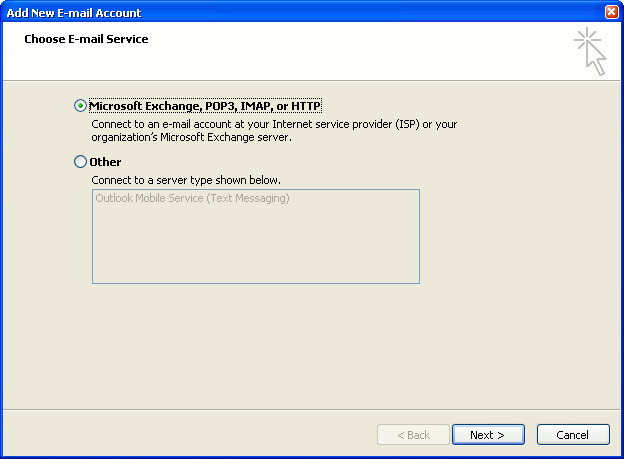
outlook2007 3

4. The "Auto Account Setup" screen appears.

When this window appears, simply leave the fields empty, check the Manually configure server settings or additional server types checkbox, then click Next.
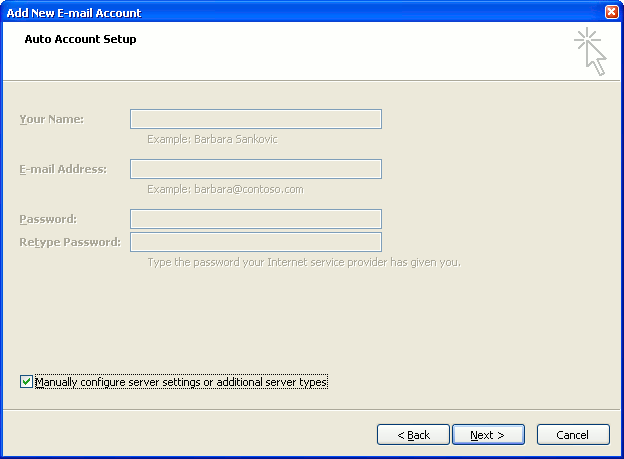
outlook2007 4

5. The "Choose E-mail Service" screen appears.

Choose Internet E-mail, then click Next.

outlook2007 5

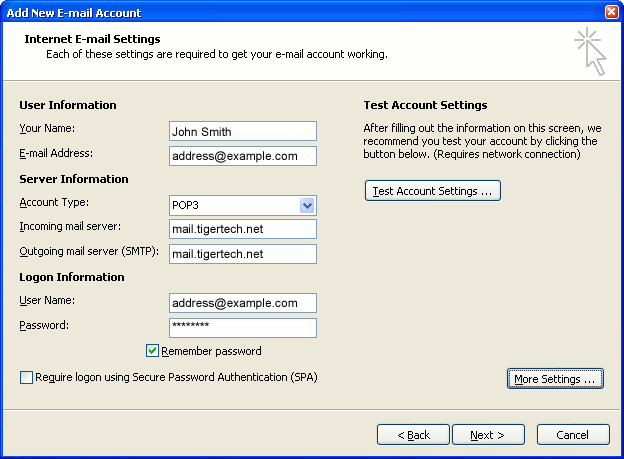
6. The "Internet E-mail Settings" screen appears.

This is the window where you'll enter most of your account settings. You want the window to look like this:
outlook2007 6
  • "Your Name" is the name that other people will see when you send them e-mail. It should usually be your real name, such as John Smith or Joan of Arc.
  • Enter your "E-mail Address". The address must be the e-mail address of the POP mailbox you created in your account management control panel.
  • For "Account Type", choose POP3.
  • Enter pop3.wildplanetmail.com for the "Incoming mail server" and smtp.wildplanetmail.com for the "Outgoing mail server (SMTP)".
  • Enter your e-mail address again as the "User Name". (The user name must be all lower case).
  • Type your e-mail password into the "Password" box. This is the password you chose for this e-mail address when you created the mailbox in your account management control panel. Or, we may have created it for you. Remember that this password may be different from your master account password. Make sure you check Remember password if you don't want Outlook to ask you for the password each time you read e-mail.
  • Make sure that "Require logon using Secure Password Authentication (SPA)" is not checked.
  • Do not click "Test Account Settings" yet; it will not work until you complete the next steps.

7. Click the "More Settings" button.

A new "Internet E-mail Settings" window appears.

8. Choose the "Outgoing Server" tab.

In the "Outgoing Server" tab, check My outgoing server (SMTP) requires authentication.

Select Use same settings as my incoming mail server.
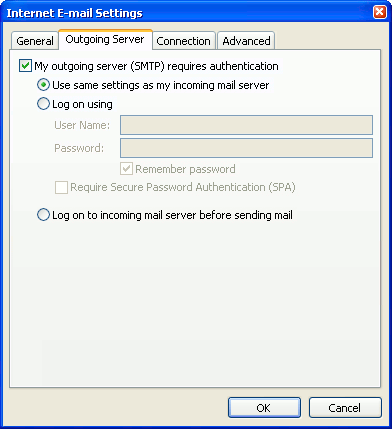
outlook2007 8

9. Choose the "Advanced" tab.

Click the "Advanced" tab and change the "Outgoing Server (SMTP)" port number to 587. Doing this makes sure that your ISP will not block your outgoing mail connections.

outlook2007 10

In this picture, we've also shown the "Leave a copy of messages on the server" option checked. Whether you do this (and what options you choose below it) is up to you, but we do recommend it: it makes Outlook leave messages on our server so they're visible to your Webmail pages, and to any other devices you might use to read mail. If you don't enable this option, your computer running Outlook will contain the only copies of your messages.

10. Click OK to close the "Internet E-mail Settings" window.

After you close the "Internet E-mail Settings" window, the "Add New E-mail Account" screen will still be visible.

11. Test the settings.

Click Test Account Settings. Outlook will usually tell you that "all tests completed successfully".

If Outlook tells you a test failed, double-check to be sure you've entered the settings correctly.

If Outlook still tells you that a test failed, we recommend continuing anyway. This is because some software on your computer (including Norton Antivirus) can make the "Test Account Settings" feature fail, even when Outlook is correctly configured. In most cases, Outlook will work properly when you try sending real messages.

If the "Test Account Settings" window is still open, close it to continue.

12. Finish the wizard.

Click Next, then Finish.

outlook2007 finish

Outlook setup is complete

You're finished! Try sending yourself a test e-mail message to make sure it works.

Read 821952 times Last modified on %AM, %07 %245 %2015 %04:%Mar

About The Author

Super User

Lorem ipsum dolor sit amet, consectetur adipiscing elit, sed do eiusmod tempor incididunt ut labore et dolore magna aliqua. Ut enim ad minim veniam, quis nostrud exercitation ullamco laboris nisi ut aliquip ex ea commodo consequat. Duis aute irure dolor in reprehenderit in voluptate velit esse cillum dolore eu fugiat nulla pariatur.

85537 comments

  • kyrie irving shoes
    Comment Link kyrie irving shoes %AM, %29 %541 %2022 %11:%Dec

    I would like to express my appreciation to this writer just for bailing me out of such a issue. Because of researching throughout the search engines and obtaining ways which were not productive, I believed my life was gone. Living devoid of the answers to the problems you have resolved by means of your entire write-up is a critical case, as well as ones that would have negatively affected my career if I had not encountered your website. Your good competence and kindness in touching all areas was excellent. I am not sure what I would have done if I hadn't come across such a point like this. I am able to now look ahead to my future. Thanks very much for your specialized and amazing guide. I won't be reluctant to recommend your web site to anyone who should have counselling on this situation.

  • golden goose
    Comment Link golden goose %AM, %29 %527 %2022 %11:%Dec

    I and my pals appeared to be digesting the nice strategies on your website while before long developed an awful suspicion I never thanked the web blog owner for those techniques. Those boys were warmed to learn all of them and already have clearly been having fun with these things. Thank you for being indeed kind and also for getting varieties of fabulous issues millions of individuals are really desperate to understand about. My very own honest regret for not expressing appreciation to you sooner.

  • curry 6
    Comment Link curry 6 %AM, %29 %526 %2022 %11:%Dec

    I as well as my friends happened to be checking the best solutions from your web blog and then developed a horrible suspicion I never thanked you for them. The people are actually as a consequence excited to read through all of them and have very much been enjoying these things. Thanks for turning out to be indeed accommodating and for picking out these kinds of outstanding topics most people are really desirous to know about. Our own sincere apologies for not expressing appreciation to you sooner.

  • yeezy
    Comment Link yeezy %AM, %29 %523 %2022 %11:%Dec

    I simply had to thank you very much again. I am not sure the things I would have made to happen in the absence of those basics documented by you directly on this field. It was a horrifying situation in my view, but finding out this well-written tactic you dealt with the issue forced me to cry with joy. I will be grateful for your work as well as hope you realize what a great job your are getting into instructing others through a site. More than likely you have never encountered any of us.

  • golden goose
    Comment Link golden goose %AM, %29 %512 %2022 %11:%Dec

    I simply wanted to send a message in order to thank you for all of the unique tips you are writing on this website. My prolonged internet look up has at the end been paid with good quality know-how to exchange with my family and friends. I would believe that most of us visitors are undoubtedly blessed to be in a fantastic place with so many perfect professionals with good techniques. I feel extremely grateful to have used your entire website and look forward to tons of more cool moments reading here. Thanks a lot once again for everything.

  • curry shoes
    Comment Link curry shoes %AM, %29 %496 %2022 %10:%Dec

    I intended to compose you a very little word to finally give many thanks over again with your incredible concepts you have shown at this time. It was certainly shockingly generous with people like you in giving extensively exactly what many individuals could have offered for an e book to make some bucks for their own end, most notably now that you might have done it if you ever considered necessary. The guidelines likewise worked to be the great way to realize that some people have the identical keenness similar to my own to understand a whole lot more with regards to this problem. Certainly there are millions of more fun moments up front for individuals that discover your blog.

  • kobe sneakers
    Comment Link kobe sneakers %AM, %29 %496 %2022 %10:%Dec

    I precisely needed to thank you very much yet again. I do not know what I would have tried without the entire basics shown by you relating to such field. This was the challenging situation in my opinion, nevertheless being able to see the well-written mode you resolved that took me to cry with happiness. I'm just thankful for your assistance and as well , trust you recognize what a great job you are carrying out teaching the rest by way of your blog post. I am certain you've never encountered all of us.

  • jordan 11
    Comment Link jordan 11 %AM, %29 %496 %2022 %10:%Dec

    Thanks for all of the work on this web page. Kim take interest in engaging in research and it's obvious why. Most of us hear all concerning the dynamic manner you deliver valuable tricks through this web blog and as well as recommend response from some other people on the issue and my simple princess is actually studying a great deal. Enjoy the remaining portion of the year. You're the one carrying out a remarkable job.

  • air jordan
    Comment Link air jordan %AM, %29 %495 %2022 %10:%Dec

    My spouse and i felt very happy when Michael managed to deal with his research from the ideas he grabbed from your very own web page. It's not at all simplistic to simply happen to be handing out ideas which often many others could have been selling. And we already know we need the website owner to be grateful to for that. The entire illustrations you have made, the simple web site navigation, the relationships your site assist to instill - it is most overwhelming, and it's really assisting our son and us know that that subject matter is satisfying, and that is pretty indispensable. Thank you for all the pieces!

  • goyard
    Comment Link goyard %AM, %29 %492 %2022 %10:%Dec

    I simply wanted to post a remark in order to thank you for the superb guides you are giving out here. My considerable internet research has at the end been honored with really good strategies to talk about with my good friends. I 'd assert that many of us readers are very endowed to exist in a very good site with very many special professionals with insightful solutions. I feel very much lucky to have encountered your webpage and look forward to plenty of more brilliant times reading here. Thanks a lot once again for everything.

Leave a comment

Make sure you enter all the required information, indicated by an asterisk (*). HTML code is not allowed.

Flickr Stream






