
Blog

How to configure Microsoft Outlook 2007 to Send & Receive Mail

This page explains how to set up Microsoft Outlook 2007 to send and receive e-mail for a POP mailbox you've created.

Tip: make sure that the program you are using is Microsoft Outlook, and not Microsoft Outlook Express. These two similarly named programs have different set up instructions. Be sure you do not see the word "Express" on the screen when you start the program.

1. Start the Microsoft Outlook program.

You can use the Start menu to start Outlook 2007. When it opens, click Tools, then Accounts Settings from the menu bar:

outlook2007 1

2. The "Accounts Settings" window appears.

Make sure the E-mail tab is selected, then click New.

outlook2007 2

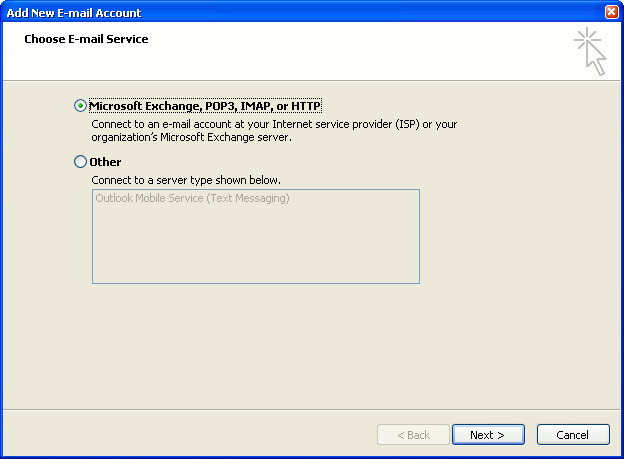
3. You are asked to choose the E-mail Service.

Choose Microsoft Exchange, POP3, IMAP or HTTP, then click Next.
outlook2007 3

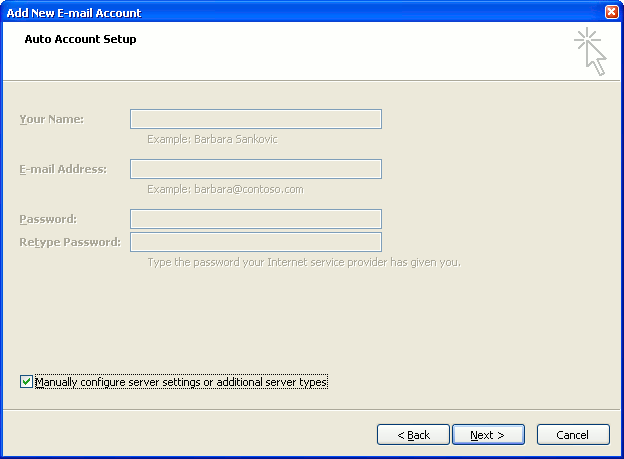
4. The "Auto Account Setup" screen appears.

When this window appears, simply leave the fields empty, check the Manually configure server settings or additional server types checkbox, then click Next.
outlook2007 4

5. The "Choose E-mail Service" screen appears.

Choose Internet E-mail, then click Next.

outlook2007 5

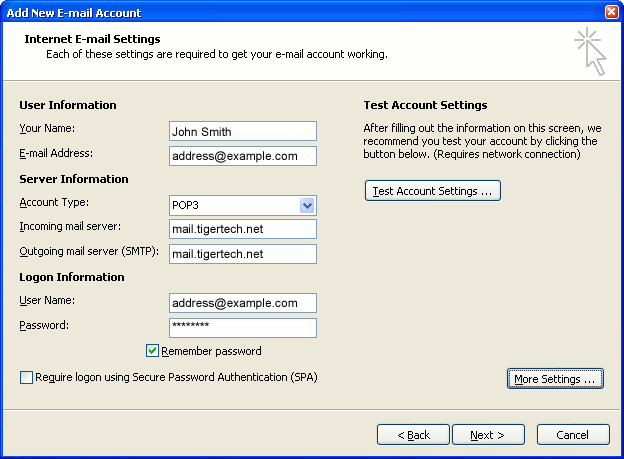
6. The "Internet E-mail Settings" screen appears.

This is the window where you'll enter most of your account settings. You want the window to look like this:
outlook2007 6
  • "Your Name" is the name that other people will see when you send them e-mail. It should usually be your real name, such as John Smith or Joan of Arc.
  • Enter your "E-mail Address". The address must be the e-mail address of the POP mailbox you created in your account management control panel.
  • For "Account Type", choose POP3.
  • Enter pop3.wildplanetmail.com for the "Incoming mail server" and smtp.wildplanetmail.com for the "Outgoing mail server (SMTP)".
  • Enter your e-mail address again as the "User Name". (The user name must be all lower case).
  • Type your e-mail password into the "Password" box. This is the password you chose for this e-mail address when you created the mailbox in your account management control panel. Or, we may have created it for you. Remember that this password may be different from your master account password. Make sure you check Remember password if you don't want Outlook to ask you for the password each time you read e-mail.
  • Make sure that "Require logon using Secure Password Authentication (SPA)" is not checked.
  • Do not click "Test Account Settings" yet; it will not work until you complete the next steps.

7. Click the "More Settings" button.

A new "Internet E-mail Settings" window appears.

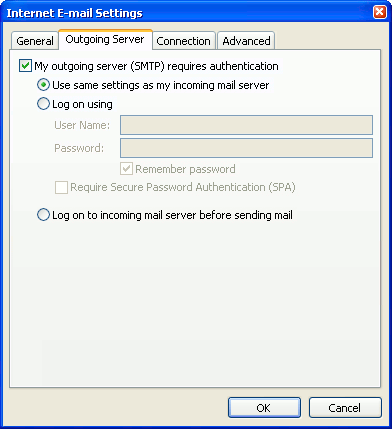
8. Choose the "Outgoing Server" tab.

In the "Outgoing Server" tab, check My outgoing server (SMTP) requires authentication.

Select Use same settings as my incoming mail server.
outlook2007 8

9. Choose the "Advanced" tab.

Click the "Advanced" tab and change the "Outgoing Server (SMTP)" port number to 587. Doing this makes sure that your ISP will not block your outgoing mail connections.

outlook2007 10

In this picture, we've also shown the "Leave a copy of messages on the server" option checked. Whether you do this (and what options you choose below it) is up to you, but we do recommend it: it makes Outlook leave messages on our server so they're visible to your Webmail pages, and to any other devices you might use to read mail. If you don't enable this option, your computer running Outlook will contain the only copies of your messages.

10. Click OK to close the "Internet E-mail Settings" window.

After you close the "Internet E-mail Settings" window, the "Add New E-mail Account" screen will still be visible.

11. Test the settings.

Click Test Account Settings. Outlook will usually tell you that "all tests completed successfully".

If Outlook tells you a test failed, double-check to be sure you've entered the settings correctly.

If Outlook still tells you that a test failed, we recommend continuing anyway. This is because some software on your computer (including Norton Antivirus) can make the "Test Account Settings" feature fail, even when Outlook is correctly configured. In most cases, Outlook will work properly when you try sending real messages.

If the "Test Account Settings" window is still open, close it to continue.

12. Finish the wizard.

Click Next, then Finish.

outlook2007 finish

Outlook setup is complete

You're finished! Try sending yourself a test e-mail message to make sure it works.

Read 827477 times Last modified on %AM, %07 %245 %2015 %04:%Mar

About The Author

Super User

Lorem ipsum dolor sit amet, consectetur adipiscing elit, sed do eiusmod tempor incididunt ut labore et dolore magna aliqua. Ut enim ad minim veniam, quis nostrud exercitation ullamco laboris nisi ut aliquip ex ea commodo consequat. Duis aute irure dolor in reprehenderit in voluptate velit esse cillum dolore eu fugiat nulla pariatur.

85572 comments

  • haydayhacktoolz
    Comment Link haydayhacktoolz %PM, %01 %724 %2022 %16:%Oct

    parka fay uomo manchester united 2022 kit tablet covers argos winterstiefel damen gr 42 womens running shoe nike react miler nike air max herren schuhe
    haydayhacktoolz https://www.haydayhacktoolz.com/

  • lepicea
    Comment Link lepicea %PM, %01 %707 %2022 %15:%Oct

    youth 9forty best slim fit golf shirts new balance 550 hailey bieber plus size kurtis online usa liverpool reebok kit moncler grenoble jacket blue
    lepicea http://www.lepicea.net/

  • jinteex
    Comment Link jinteex %PM, %01 %592 %2022 %13:%Oct

    redmi note 9 h眉lle mit band black rock h眉lle iphone 11 pro max jordan 1 bleu et blanche botas de ronaldo messi maglia ariana babydoll dress
    jinteex https://www.jinteex.com/

  • moncler jackets
    Comment Link moncler jackets %PM, %01 %553 %2022 %12:%Oct

    I truly wanted to send a remark in order to say thanks to you for the lovely tips you are showing at this website. My considerable internet search has at the end been compensated with reliable facts and techniques to exchange with my colleagues. I would assert that many of us site visitors actually are rather lucky to dwell in a really good site with many brilliant professionals with very helpful concepts. I feel truly lucky to have encountered your website page and look forward to tons of more fun moments reading here. Thanks once more for everything.

  • vybzmedia
    Comment Link vybzmedia %PM, %01 %545 %2022 %12:%Oct

    nike structure herren totto cachuchas robe paillette et tulle abendkleider f眉r muslime handyh眉lle xiaomi redmi note 10 pro iphone 12 lederh眉lle mit magsafe
    vybzmedia https://www.vybzmedia.com/

  • wanhedra
    Comment Link wanhedra %AM, %01 %435 %2022 %09:%Oct

    minnesota twins toddler hat meaning nike air pegasus 83 todas rojo pandora rose ring shimmering puzzle heart frame 40th birthday pandora charm burberry long sleeve shirt
    wanhedra http://www.wanhedra.com/

  • kyrie 6
    Comment Link kyrie 6 %AM, %01 %385 %2022 %08:%Oct

    My husband and i felt so more than happy when Albert could carry out his research through the entire precious recommendations he acquired when using the site. It's not at all simplistic to just possibly be making a gift of tips which usually people today might have been trying to sell. And we remember we need the writer to thank for this. Those explanations you have made, the easy website menu, the relationships you assist to instill - it is many terrific, and it is assisting our son and the family feel that that article is entertaining, and that is pretty pressing. Thank you for all the pieces!

  • kingsoftbbs
    Comment Link kingsoftbbs %AM, %01 %320 %2022 %06:%Oct

    tab a7 2020 h眉lle harry potter handyh眉lle iphone 11 chaussures de lebron james tenis bershka rojos maglioncino kontatto womens black work dress
    kingsoftbbs https://www.kingsoftbbs.com/

  • lukasshort
    Comment Link lukasshort %AM, %01 %239 %2022 %04:%Oct

    iphone 12 h眉lle rosegold samsung s6 lite h眉lle amazon adidas team court noir zapatillas airwalk skate loro piana maglioni sweetheart ball gown
    lukasshort https://www.lukasshort.com/

  • goyard handbag
    Comment Link goyard handbag %AM, %01 %215 %2022 %04:%Oct

    I want to show some thanks to the writer for bailing me out of this particular matter. After looking out through the online world and meeting advice which are not pleasant, I assumed my life was well over. Living devoid of the strategies to the difficulties you've solved all through this article content is a crucial case, as well as the ones that might have adversely damaged my career if I had not encountered the blog. Your actual understanding and kindness in touching every item was very helpful. I'm not sure what I would have done if I hadn't come upon such a stuff like this. I'm able to at this moment look ahead to my future. Thanks very much for the impressive and results-oriented guide. I will not think twice to propose your site to any person who desires guide about this issue.

Leave a comment

Make sure you enter all the required information, indicated by an asterisk (*). HTML code is not allowed.

Flickr Stream






